
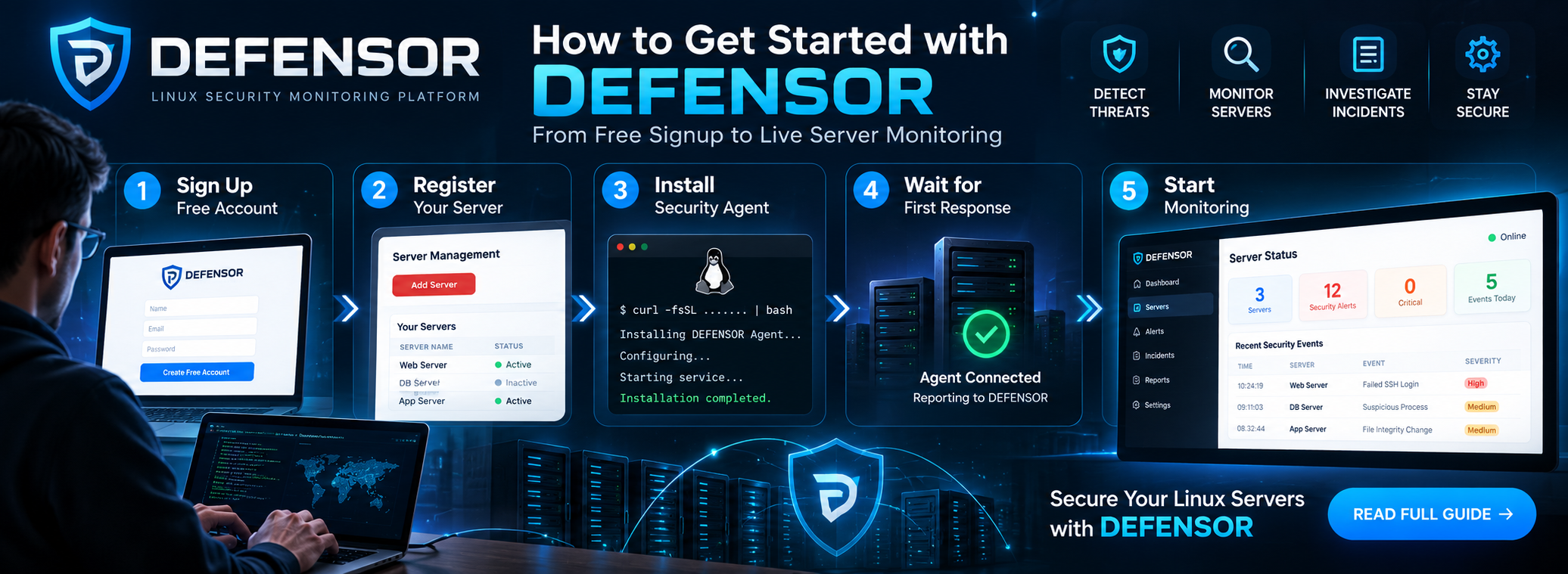
Protect your Linux servers with DEFENSOR. Create a free account, register your server, install the security agent, and start monitoring your server from a centralized security dashboard.
DEFENSOR is an enterprise Linux security monitoring platform designed to help users monitor their servers, identify suspicious activity, and gain visibility into their security status from one place.
In this guide, we will walk through the complete process of getting started with DEFENSOR—from creating an account to receiving the first agent response and viewing server monitoring information.
Step 1: Sign Up for a Free DEFENSOR Account
Start by visiting the official DEFENSOR website and creating your account.
- Open the DEFENSOR website.
- Navigate to the signup or registration page.
- Enter the required registration details.
- Complete the account creation process.
- Sign in to your DEFENSOR dashboard.
Once logged in, explore the available dashboard features and locate the Server Management section.
Your account provides the starting point for registering and managing your Linux servers. Available server capacity and features depend on your account plan.
Step 2: Register Your Linux Server
After signing in, open the Server Management page.
This section allows you to manage registered servers and access the credentials needed to connect each server to DEFENSOR.
Follow these steps:
- Check whether your account has available server capacity.
- Add or register a server if capacity is available.
- Provide a recognizable server name.
- Open the credentials for the server you want to connect.
- Identify its unique Server ID and Server API Token.
Each registered server has its own credentials. These credentials allow the security agent to associate its reports with the correct server in your DEFENSOR account.
Important: Never publish your Server API Token or share it with unauthorized people. Do not reuse another server's credentials.
Step 3: Install the DEFENSOR Security Agent
Once your server is registered, locate the Install Security Agent section in the dashboard.
DEFENSOR provides an installation command associated with the currently selected server.
Installation procedure
- Select the correct server in the DEFENSOR dashboard.
- Review the generated installation command.
- Use the copy option to copy the command.
- Connect to the registered Linux server through SSH or open its terminal.
- Review the command and confirm that it comes from the official DEFENSOR dashboard.
- Execute the installation command on that Linux server, following the provided instructions.
The agent must be installed on the actual Linux server you want to monitor—not on an unrelated computer.
The installation command contains server-specific configuration or credentials. Keep it private and avoid posting it in screenshots, public forums, or support messages.
Security recommendation: Before running any downloaded installation script, review its source and verify that it is provided by DEFENSOR through a trusted channel.
Step 4: Wait for the First Agent Response
After installation, allow the agent some time to start and communicate with the DEFENSOR platform.
The first response may not appear immediately. Registration, service startup, network connectivity, and initial reporting can take some time.
On the Linux server, check the agent service using:
sudo systemctl status security-agentLook for the service status and recent log messages.
If the service is not running, investigate the reported error before proceeding.
You should also verify that:
- The agent service is installed and running.
- The server has a working network connection.
- Outbound connectivity to the configured DEFENSOR endpoint is permitted.
- The installation used the correct Server ID and API Token.
- No authentication or connectivity errors are preventing reporting.
Do not assume that installation alone means the server is already reporting successfully.
Step 5: Confirm That the Server Is Reporting
Return to the DEFENSOR dashboard and open Server Management or the relevant monitoring page.
Check the agent status for your registered server.
Once the first response has been received and accepted, the dashboard should indicate that the agent is reporting, according to the status labels supported by your account.
If the server remains offline or does not report:
- Recheck the systemd service status.
- Review the agent's logs for authentication, network, or configuration errors.
- Confirm that the selected server matches the credentials used during installation.
- Check connectivity to the configured DEFENSOR endpoint.
- Refresh the dashboard after allowing time for the next reporting cycle.
Keep the original server credentials secure while troubleshooting.
Step 6: Start Monitoring Your Linux Server
After the agent begins reporting, you can use the available DEFENSOR monitoring features to review your server's security information.
Depending on the modules enabled for your account and agent, monitoring may include:
- Server security status and agent health.
- Suspicious activity and security alerts.
- Security events and incident information.
- Threat indicators and investigation context.
- Additional Linux security monitoring capabilities provided by the platform.
Use the dashboard to review reported information, investigate suspicious activity, and identify issues that require further attention.
Remember that an active agent does not automatically guarantee that every threat will be detected or blocked. Review alerts carefully and keep the operating system, security controls, and agent updated.
Step 7: Manage Your Servers from One Dashboard
As your infrastructure grows, DEFENSOR's Server Management section helps you identify and manage the servers associated with your account.
Each server has its own identity and credentials, helping keep agent reporting associated with the correct registered server.
Before installing an agent or troubleshooting a reporting issue, always confirm that you have selected the intended server.
If your account has reached its server limit, you may need to remove an unused registration if permitted by your plan, or review the available subscription options before adding another server.
Troubleshooting Quick Reference
| Problem | What to check |
|---|---|
| Agent does not start | Run sudo systemctl status security-agent |
| Server is not reporting | Check agent logs and network connectivity |
| Authentication failure | Verify the Server ID and API Token |
| Wrong server appears in dashboard | Confirm the selected server and installation credentials |
| Cannot register another server | Check account capacity and subscription limits |
Conclusion: Get Your Server Connected to DEFENSOR
Getting started with DEFENSOR follows a straightforward process:
Create your account → Register your server → Install the security agent → Wait for the first response → Confirm reporting → Start monitoring.
Following these steps helps you establish a connection between your Linux server and the DEFENSOR security monitoring platform.
Begin with one server, confirm that the agent reports successfully, and then expand your monitoring setup as your requirements grow.
DEFENSOR — The Attack Stops Here.
Visit the official DEFENSOR website to get started.
Security note: Follow the current installation instructions in your authenticated DEFENSOR dashboard. Exact features, reporting intervals, and account limits may vary by plan and platform version.